
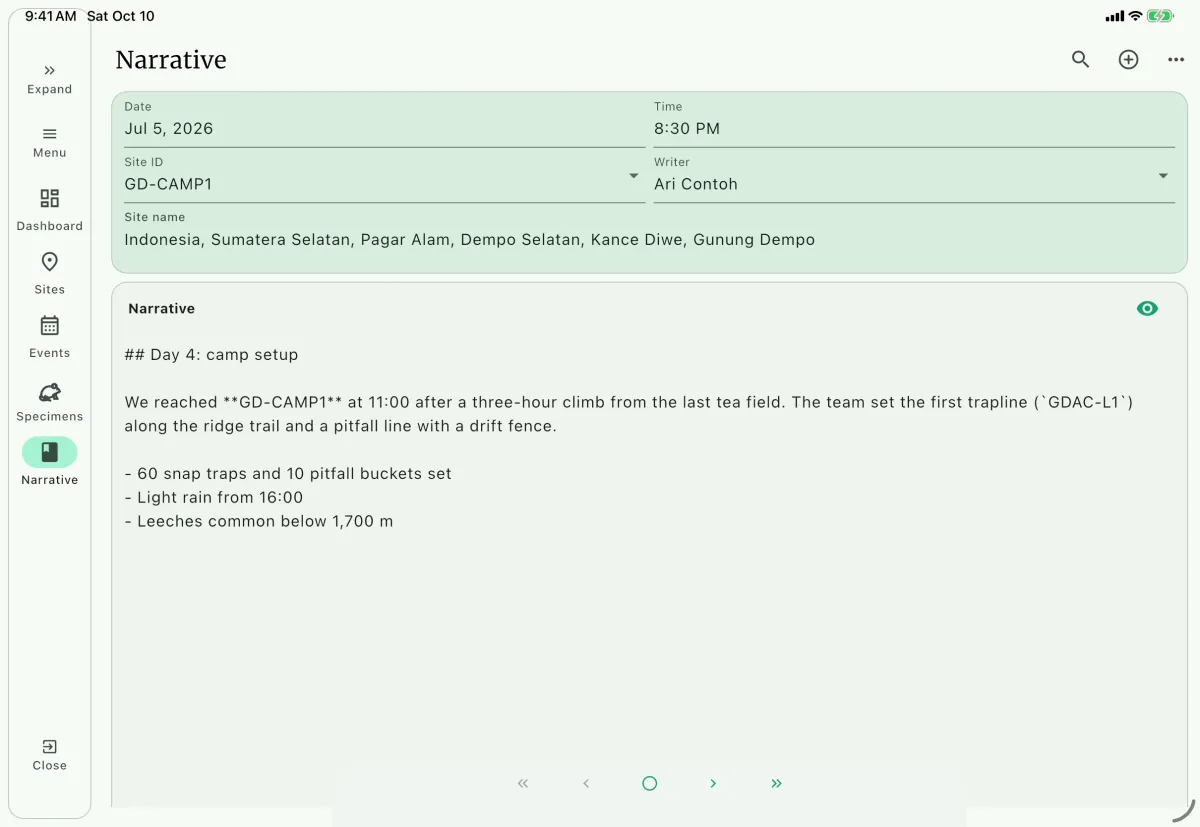
Large screen
Small screen
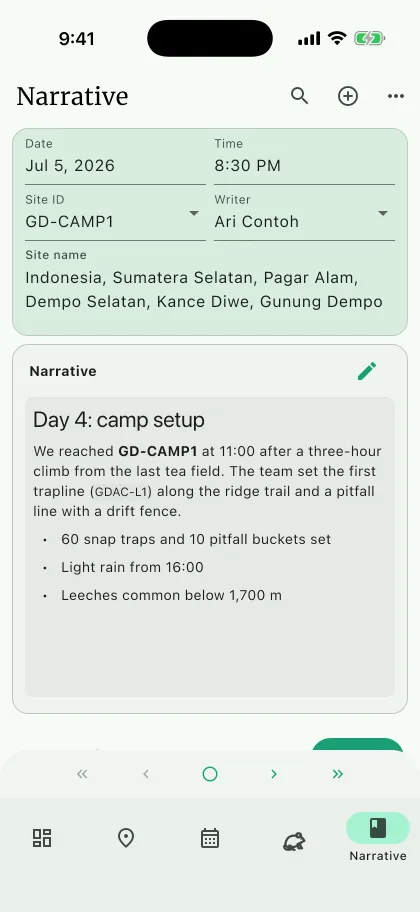
A narrative is your field journal. Use it to record observations, decisions, and other context that may not fit in a specimen or event record.
Creating a narrative
Section titled “Creating a narrative”Open the Narrative page A from the navigation bar.
Select
+orCreate narrativeB.Enter the
DateC and, optionally, theTime.Select a
SiteD. The site name is displayed automatically from the site's locality information.Select the
WriterE from the personnel assigned to the project.Enter the narrative text F.
Narrative fields persist automatically. Leave the entry and reopen it to confirm the date, writer, site, and text before moving on.
The date and time are stored separately. If you enter a time without a date, NAHPU uses the current date.
Writing and previewing text
Section titled “Writing and previewing text”Narrative text supports Markdown. Use the Preview and Edit I controls above the text field to switch between writing and rendered views.
Markdown cheat sheet
Section titled “Markdown cheat sheet”You do not need Markdown to write a narrative. Plain text works, and the formatting below is there when a long entry is easier to read with structure.
| What you want | What you type | What you get |
|---|---|---|
| Bold | **set before dusk** | set before dusk |
| Italic | _Bunomys penitus_ | Bunomys penitus |
| Strikethrough | ~~12 traps~~ | |
| Heading | ## Morning check | a section heading |
| Bullet list | - checked line 1 | a bulleted item |
| Numbered list | 1. checked line 1 | a numbered item |
| Checklist | - [ ] rebait traps | a checkbox item |
| Quote | > guide reported rain | an indented quote block |
| Code or a fixed-width value | `GPHH-L1` | GPHH-L1 |
| Link | [GBIF](https://gbif.org) | GBIF |
Three more rules cover most of the rest:
- Leave a blank line between paragraphs. A single line break inside a paragraph is treated as a space.
- Indent by four spaces to nest a list item under another one.
- Write
---on its own line for a horizontal rule between sections of a long day.
Switch to Preview to confirm the entry reads the way you intended before you move on. Markdown is stored as you typed it, so exports and backups keep the raw text.
Adding media
Section titled “Adding media”Attach media to a narrative from the camera, device gallery, or file picker. Narrative media is included when the project is transferred and can also be included in exports where narrative media is selected.
Searching and managing narratives
Section titled “Searching and managing narratives”Use the search button G in the Narrative app bar to filter narrative entries. Use the page controls H to move between entries. The menu for the selected entry provides these deletion actions:
- Delete narrative - Delete the selected narrative and its associated media.
- Delete all narrative - Delete every narrative in the active project.
Deletion is permanent. Export or back up the project first if the entries may be needed later.