
Large screen
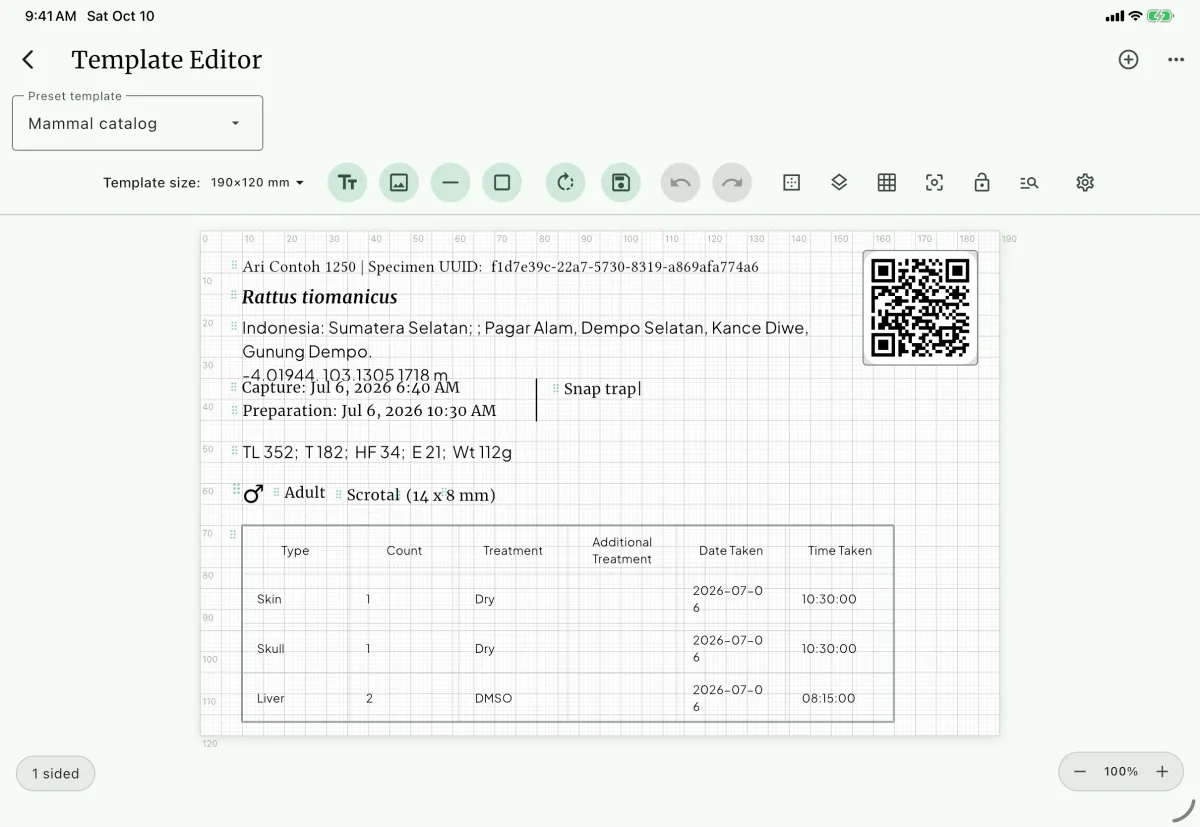
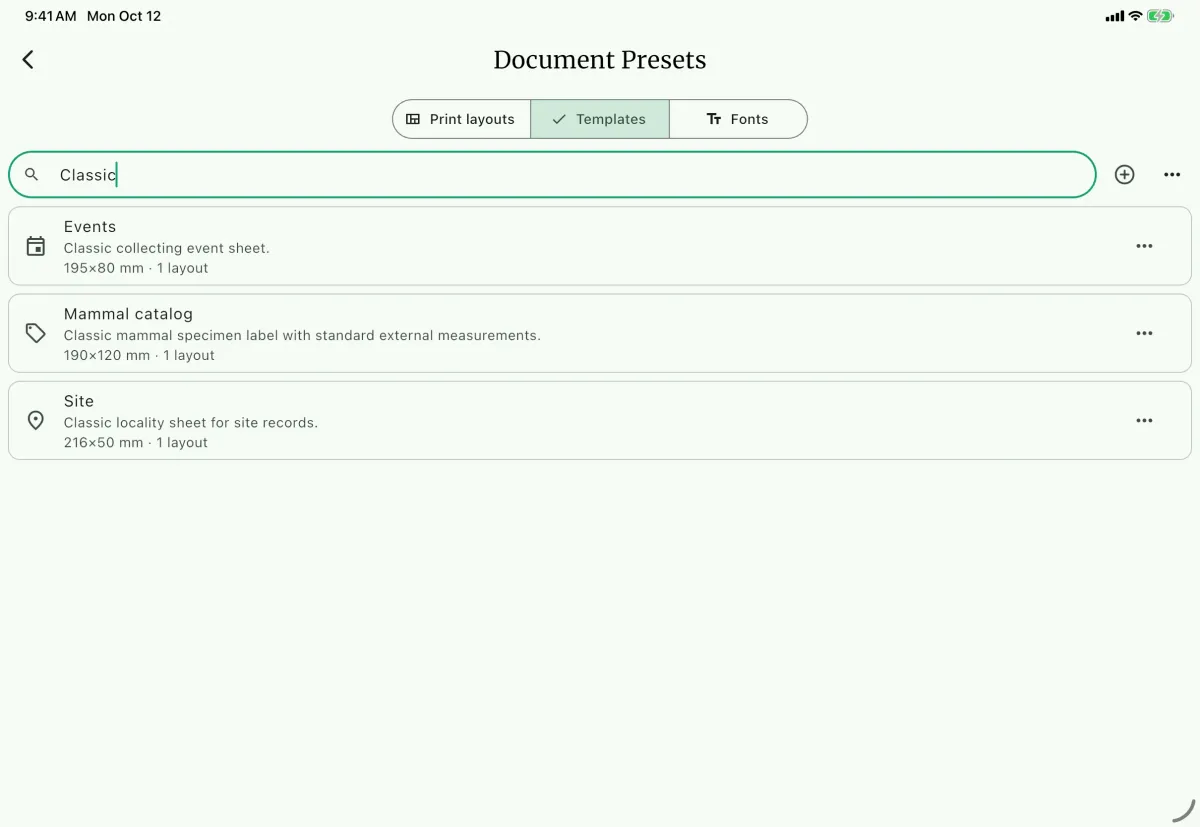
Small screen
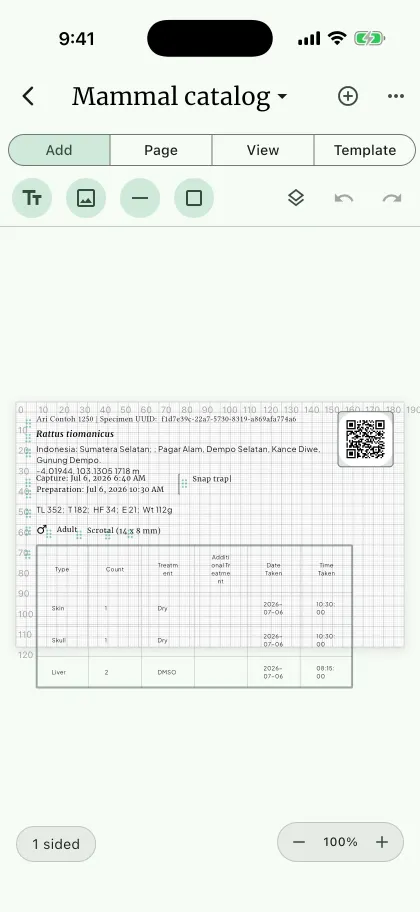
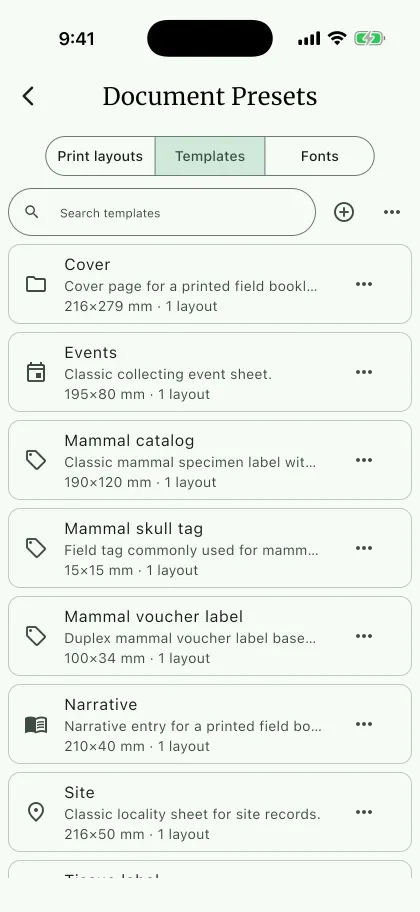
Export expressions are the placeholders, fallbacks, and conditional syntax that NAHPU uses to turn record fields into output. The same expressions drive document template text elements and tabular export presets, so a value written as [taxonomy::genus] [taxonomy::specificEpithet] C resolves the same way on a printed label and in an exported column. For the workflows that use them, see Export documents and Export records.
Common expressions
Section titled “Common expressions ”Copy these into a text element of a document template, or into Advanced > Raw source expression of a tabular export mapping. The keys are for specimen records; the sections below explain how each part works.
Species name
Section titled “Species name ”[taxonomy::genus] [taxonomy::specificEpithet]This prints Rattus rattus. When some specimens are identified only to genus, give the epithet a fallback so the name reads Rattus sp.:
[taxonomy::genus] [taxonomy::specificEpithet??sp.]For the full name, including a subspecific epithet, use [specimen::scientificName]. In a tabular preset, use a Custom field mapping.
Full locality
Section titled “Full locality ”This joins the geography fields into one value and skips any that are empty, so a missing county does not leave a doubled comma.
[geography::country]|[geography::islandGroup]|[geography::stateProvince]|[geography::county]|[geography::municipality]|[geography::locality]The | marks where each part ends; the output separator comes from the list settings:
- Document template: set
Text typetoList Valuesand choose the comma format. - Tabular export preset: set
Mapping typetoList field,List outputtoOne column, andSeparatortoComma (A, B). Paste the expression intoRaw source expressionand fill inColumn name (optional); the Darwin Core and NAHPU namespace header formats require it.
A record prints Indonesia, West Java, Bogor, Cibodas; one without a county prints Indonesia, West Java, Cibodas. Remove, reorder, or add parts as needed.
Testis size
Section titled “Testis size ”This prints length x width only when the testis is scrotal and both measurements are recorded. Every other record prints nothing.
[[if][mammalAttribute::testisPosition=="0"&&mammalAttribute::testisLength!=""&&mammalAttribute::testisWidth!=""]=>"[mammalAttribute::testisLength] x [mammalAttribute::testisWidth]"]]Use it in a text element of a document template, or in a Custom field mapping of a tabular preset.
| Record | Output |
|---|---|
| Scrotal, 10 mm by 6.5 mm | 10 x 6.5 |
| Scrotal, width not recorded | Nothing |
| Abdominal | Nothing |
| Female | Nothing |
The conditions require the stored position 0, which is Scrotal, and both measurements; only then is the text written, with its fields filled in. See Conditional text.
Add mm inside the quotes for a unit, or |"not scrotal" before the closing ]] to write something for every other record.
Encoded field labels
Section titled “Encoded field labels ”[mammalAttribute::testisPosition#label]This prints Scrotal instead of the stored code 0, in any text type, including a Custom field mapping. See Decode an encoded field.
Placeholder symbols
Section titled “Placeholder symbols”Everything a template can write comes from one of these forms. All of them are typed into a text element, and all of them can be mixed with ordinary text.
| Symbol | Meaning | Example |
|---|---|---|
[ ] | A field placeholder. | [fieldNumber] |
:: | Separates table from field in a full key. | [specimen::fieldNumber] |
?? | Fallback written when the field is empty. | [specimen::preparator??N/A] |
#label | Prints an encoded field's label instead of its stored code. | [mammalAttribute::testisPosition#label] |
-img | Renders a .sex field as an icon instead of text. | [mammal.sex]-img |
[[ ]] | A conditional expression. | [[specimen::condition][…]] |
[[if] … ]] | Conditional text, written according to the conditions. | [[if][…]=>" mm"]] |
Field keys
Section titled “Field keys”A placeholder holds either a full Table::Field key or a short field name:
Field number: [specimen::fieldNumber]Scientific name: [taxonomy::scientificName]Locality: [site::specificLocality]Short forms such as [fieldNumber] resolve too, but the full key is safer whenever more than one table has a field of that name. Insert keys from the field picker rather than typing them; the picker only offers fields that the template's record type can actually supply.
Null fallback
Section titled “Null fallback”?? gives a placeholder something to print when the record has no value. The No Content Placeholder control writes it for you, and offers five options:
| Option | Written as | Output when the field is empty |
|---|---|---|
Blank | [specimen::preparator] | Nothing |
table::field | [specimen::preparator??specimen::preparator] | The field key itself, as a visible reminder |
N/A | [specimen::preparator??N/A] | N/A |
None | [specimen::preparator??None] | None |
| Custom | [specimen::preparator??not recorded] | Whatever you typed |
The text after ?? is literal. A placeholder that ends in -img never takes a fallback.
Sex icon and picture placeholders
Section titled “Sex icon and picture placeholders”Two placeholders behave differently from the rest because they render an image rather than a string. Both must be the only thing in their text element:
[mammal.sex]-imgdraws the sex as a resizable icon. The key must end in.sex; set the icon box with the width and height fields.[media::media], with the text type set toPicture, draws the record's attached images in a grid sized to the number of images.
Custom fields
Section titled “Custom fields”A custom field is an expression that mixes fields with literal text, or holds literal text alone. In a document template, every text element is already a custom field: insert fields with Insert Field and type text around them. In a tabular export preset, build one with Add custom field in Edit Fields, or choose Custom field as the Mapping type of an existing mapping.
The custom field editor writes the expression for you:
| Control | What it does |
|---|---|
Add field | Appends a field placeholder chosen from the field picker. |
Add text B | Appends a text or separator segment. |
Add conditional text | Appends conditional text built from conditions, the text to write, and an optional text otherwise. |
Show label | On an encoded field, adds #label so the column shows the label rather than the stored code. |
Edit conditional text | Reopens a conditional text segment. |
Move segment up / Move segment down | Reorders segments. Output is written left to right. |
Remove segment | Deletes a segment. |
Expression: | Shows the expression that will be saved. |
Column name | Names the output column. |
A custom field does not have to include a field. Each of these lines is a complete, valid expression:
[personnel::initial]-[specimen::fieldNumber][taxonomy::genus] [taxonomy::specificEpithet]NAHPUThe last example writes NAHPU in every row, which suits a constant column such as an institution code that the receiving database expects.
Set Column name for every custom field. It is required when Generated header format is Darwin Core or the NAHPU namespace. With table::fieldName or fieldName, an unnamed custom field takes its header from the first field in the expression, or from the text itself when there is no field.
Custom fields in a tabular preset use the Normal Text type. Conditional output, formatted text types, and indexed list columns need a mapping with exactly one field, so use Single field or List field for those.
Conditional output
Section titled “Conditional output”A conditional expression decides at print time whether to mark a value or replace it. Build one with Conditional output in the text toolbar, which writes the syntax below into the text; the same dialog reopens and edits an expression that is already there.
Tabular export presets offer the same conditional types on Single field mappings; the target is the mapping's own field.
The complete symbol set
Section titled “The complete symbol set”| Symbol | Name | What it does |
|---|---|---|
[[ … ]] | Expression delimiters | Open and close a conditional expression. |
][ | Target separator | Ends the target field and starts the condition list. |
== | Equals | Matches when the value is exactly the comparison value. |
!= | Not equals | Matches when the value differs from the comparison value. |
~= | Contains | Matches when the comparison value occurs anywhere in the value. |
!="" | Is not empty | Matches when the field holds any value at all. |
=="" | Is empty | Matches when the field is blank or absent. |
&& | All | Every condition must match. |
|| | Any | At least one condition must match. |
" … " | Value quotes | Wrap every comparison value. Required, and empty for the two emptiness operators. |
\" \\ | Escapes | A quote or a backslash inside a comparison value. |
]=> | Replacement marker | Ends the conditions and starts the replacement or conditional text. |
if | Conditional text keyword | Takes the target's place, so the expression writes text instead of changing a field. |
| | Else separator | After the text, starts the text written when the conditions do not match. |
The three shapes
Section titled “The three shapes”Bracket the target value when the conditions match:
[[target][conditions]]Replace the target value with literal text when the conditions match:
[[target][conditions]=>"replacement"]]Write text chosen by the conditions, with no target field:
[[if][conditions]=>"text"]][[if][conditions]=>"text"|"otherwise"]]Note the closing: the replacement and text forms still end in ]], and the ]=> marker sits inside the expression.
Conditional text (if and else)
Section titled “Conditional text (if and else) ”Conditional text writes one of two texts depending on the conditions, instead of changing a field's value. Use it for text that belongs with a field but should only appear with it, such as a unit:
[mammalAttribute::testisWidth][[if][mammalAttribute::testisWidth!=""]=>" mm"]]A width of 6.5 prints 6.5 mm; a missing width prints nothing, not a stray mm. Add a second text after | to write something when the conditions do not match:
[[if][mammalAttribute::testisPosition=="0"]=>"scrotal"|"not scrotal"]]A text can hold field placeholders, with fallbacks and #label, and they are filled in when that text is written:
[[if][mammalAttribute::testisLength!=""&&mammalAttribute::testisWidth!=""]=>"[mammalAttribute::testisPosition#label], [mammalAttribute::testisLength] x [mammalAttribute::testisWidth] mm"]]- Conditions use the same operators as other conditionals and compare stored codes.
- Quote each text, and write a quote inside it as
\". A|inside the quotes is ordinary text. - Without a second text, nothing is written when the conditions do not match.
- Another conditional expression inside a text is not evaluated.
ifis lowercase. The dialog'sConditional texttype writes this form for you.
Two worked examples
Section titled “Two worked examples”Bracket a weight that was estimated. Mammal measurements carry an accuracy flag naming the fields that were not measured precisely. Bracket the weight whenever it is one of them:
[[mammalAttribute::weight][mammalAttribute::accuracy~="weight"]]A specimen whose weight is flagged prints [82.5]; one measured precisely prints 82.5. This is the ~= special case: on mammalAttribute::accuracy the comparison asks whether the named measurement is flagged, not whether the text contains the word.
Mark a name whose identification is uncertain. ID confidence is stored as 0 for Low, 1 for Medium, and 2 for High, so "not High" is !="2". Put the genus and the epithet in one text element and make the epithet conditional:
[taxonomy::genus] [[taxonomy::specificEpithet][specimen::iDConfidence!="2"]=>"?"]]A high-confidence identification prints Rattus rattus; anything less prints Rattus ?.
Two things about this example are worth understanding before you rely on it.
Conditions compare the stored value, not the displayed one. Encoded Text turns 2 into High on the way to the page, but a condition sees 2, so specimen::iDConfidence!="High" would match every record. Read the code from the value the record actually holds.
A replacement substitutes the value; it does not append to it. That is why the example prints Rattus ? and not Rattus rattus?. To keep a value and add a suffix conditionally, write the value and follow it with conditional text.
A nonempty comparison such as !="2" does not match unrecorded confidence. To include that case explicitly, use Is empty as an additional OR condition:
[[taxonomy::specificEpithet][specimen::iDConfidence=="0"||specimen::iDConfidence=="1"||specimen::iDConfidence==""]=>"?"]]Conditional types in the dialog
Section titled “Conditional types in the dialog”Conditional type chooses which of the four arrangements the dialog writes:
| Type | Output | Conditions test |
|---|---|---|
Conditional brackets | Wraps the target value in [ ] | Any other field |
Conditional field | Writes Replacement text | Any other field |
Conditional value | Writes Replacement text | The target field's own value |
Conditional text | Writes Text when matched, or Text otherwise (optional) | Any field; there is no target |
Conditional text has no Target field. The dialog adds the expression to the end of the element's text.
Leave Replacement text empty to hide the value when the conditions match.
Conditional value is the one to use for "when this field says X, print Y". It sets every condition's source field to the target for you, which is why the source-field picker disappears when you select it.
Match logic sets the joiner: Any condition (OR) writes || and All conditions (AND) writes &&.
Suppress a value that depends on another field
Section titled “Suppress a value that depends on another field”Is not empty and Is empty are the operators for "only print this when that was recorded". They take no comparison value, and the dialog hides the value box when you choose one.
Pair them with an empty Replacement text to hide a value. This prints the testis length only when a testis position was recorded:
[[mammalAttribute::testisLength][mammalAttribute::testisPosition==""]=>""]]A conditional hides only its target. Literal text beside it, such as a unit or the x between two measurements, still prints. Give that text a condition of its own with conditional text:
[[mammalAttribute::testisLength][mammalAttribute::testisPosition==""]=>""]][[if][mammalAttribute::testisPosition!=""&&mammalAttribute::testisLength!=""]=>" mm"]]Testis size shows a complete pattern.
How conditions are evaluated
Section titled “How conditions are evaluated”Comparisons trim surrounding whitespace and are case-sensitive. They read stored values: compare "2", not "High", for identification confidence. Use Is empty (=="") or Is not empty (!="") to test whether a source field has a value. Other comparisons do not match a blank source. Do not mix && and || in one expression.
An empty target uses its No Content Placeholder rather than a conditional replacement. ~="" is invalid. A malformed expression can print literally, so preview both matching and nonmatching records. A replacement substitutes the whole target value; an empty replacement hides a nonempty target when its conditions match.
For mammalAttribute::accuracy, ~= tests whether the named measurement was flagged inaccurate, for example mammalAttribute::accuracy~="totalLength". It is not an ordinary substring test for that field.
Text types and their formats
Section titled “Text types and their formats”Tabular export presets use the same text types for the format of a Single field mapping.
| Text type | Format options |
|---|---|
Normal Text | Normal, Uppercase, Lowercase, Capitalize |
Picture | Sized with width and height rather than a format |
Markdown | Normal; renders rich text such as a narrative |
Coordinates | Decimal, Cardinal Dec, DMS, DDM |
List Values | Pipe, comma, semicolon, slash, new line, bulleted, custom separator |
Nested List | Table or Card list; a table adds a Header Case control |
Dates | YYYY-MM-DD, DD-MM-YYYY, MM-DD-YYYY, DD/MM/YYYY, MM/DD/YYYY, Month DD, YYYY, DD Month YYYY, DD Mon YYYY |
Date and Time | Seventeen combinations of the date formats above with 24-hour, 12-hour, ISO, and time-only output |
Time | 24h, 24h seconds, 12h, 12h padded |
Sex | Presentation and Missing, described below |
Number | Original, or 0, 1, 2, or 3 decimal places |
Encoded Text | Default mapping or Custom mapping... |
Nested List is for related records — specimen parts, personnel, collection methods — and is the text type that most often needs dynamic sizing.
Encoded Text: what decodes
Section titled “Encoded Text: what decodes”Encoded Text turns a stored numeric code into its label. Default mapping uses the table below, matched on the end of the field key, so both mammalAttribute::testisPosition and the short testisPosition decode.
| Field key ends with | Code 0 | 1 | 2 | 3 | 4 | 5 | 6 |
|---|---|---|---|---|---|---|---|
::sex | Male | Female | Unknown | Gynandromorph | Hermaphrodite | Female? | Male? |
::iDConfidence | Low | Medium | High | ||||
mammalAttribute::age | Adult | Subadult | Juvenile | Unknown | |||
herpAttribute::age | Adult | Juvenile | Neonate | Metamorph | Unknown | ||
::testisPosition | Scrotal | Abdominal | |||||
::epididymisAppearance | Tubular | Partial | Not Tubular | ||||
::vaginaOpening | Imperforate | Perforate | |||||
::pubicSymphysis | Close | Small Open | Open | ||||
::reproductiveStage | Nulliparous | Primiparous | Multiparous | ||||
::mammaeCondition | Small | Large | Lactating | ||||
::echolocation | FM | CF | QCF | None | |||
::ovaryAppearance | Smooth | Ova minute | At least one ovum ≥ 1 mm dia. | ||||
::oviductAppearance | Straight | Convoluted | |||||
::fat | None | Trace | Light | Moderate | Heavy | Extremely Heavy | |
::bodyMolt | None | Trace | Light | Moderate | Heavy |
These fields decode as Yes for 1 and No for 0:
::broodPatch, ::hasBursa, ::wingIsMolt, ::tailIsMolt, ::showBatFields, ::showEchoFields.
Anything else is left as it is. A field with no entry above, a value that is not a whole number, and a code outside its list all print unchanged — which is what a bare number in a printed label usually means. Custom mapping... is the way to label a field the default mapping does not cover.
Two of these have friendlier alternatives. The Sex text type formats sex as a symbol or letter and handles uncertainty, and […sex]-img draws it as an icon; use Encoded Text on a sex field only when you want the plain word.
Decode an encoded field
Section titled “Decode an encoded field”An encoded field stores a number, such as 0 or 1, and the expression does not change: write the field placeholder as usual. The text type, not the placeholder, turns the code into its label.
In a document template. Put the placeholder in a text element and set Text type to Encoded Text:
Testes: [mammalAttribute::testisPosition]With Default mapping, a specimen that stores 0 prints Testes: Scrotal. Each placeholder in the element is decoded against its own field, so one element can hold several encoded fields:
[mammalAttribute::age], [mammalAttribute::testisPosition]In a tabular export preset. Use a Single field mapping for the encoded field and set Value format to Encoded text. A Custom field mapping always uses Normal Text, so add #label to an encoded field inside it, or select Show label on its segment:
[mammalAttribute::testisPosition#label], [mammalAttribute::mammaeCondition#label]The #label marker. #label decodes one placeholder with the default mapping in any text type, so one element or column can mix codes and labels. Write it after the key and before any fallback, as in [mammalAttribute::sex#label??Unknown]. A value with no default label prints unchanged.
Custom labels. In the template editor, choose Custom mapping... as the format, then Map encoded values to type a label for each code. The dialog starts from the default labels. In a tabular preset, write the same mapping in Advanced > Raw format option:
custom_map:0=Scrotal,1=AbdominalWrite each pair as code=label, separated by commas. Labels cannot contain a comma or an equals sign, and a code without a pair prints unchanged. Any other Raw format option, such as enum, uses the default mapping. A custom mapping applies to every placeholder in the element, so give a custom-mapped field a text element of its own.
Conditions still read codes. Decoding changes only what is printed. A condition on an encoded field compares the stored code, so write mammalAttribute::testisPosition=="0", not =="Scrotal". An empty field is not decoded; it uses its No Content Placeholder fallback.
Sex formatting
Section titled “Sex formatting”| Control | Options |
|---|---|
Format | Symbol (♂/♀), Letter (M/F), Text (Male/Female) |
Missing | Unknown, N/A, None |
An uncertain determination keeps its suffix in every presentation: Female?, F?, ♀?, and Male?, M?, ♂?.
Troubleshooting the syntax
Section titled “Troubleshooting the syntax”| Symptom | What to check |
|---|---|
| A conditional prints literally | A malformed expression is skipped. Check for a missing ]], an unquoted value, or mixed && and ||. |
A fallback prints [table::field] | The table::field fallback option is selected; switch it to Blank, N/A, None, or a custom string. |
| A sex icon renders as text | The element must contain only […sex]-img, and the key must end in .sex. |
| Record images do not appear | The element must contain only [media::media] and use the Picture text type. |
| A custom field column has an unexpected header | Set Column name. Without it, the header comes from the first field or from the literal text. |
| An encoded field prints a number | Set the text type to Encoded Text, or Encoded text on a Single field mapping, or add #label to the placeholder. Check that the code is in the default mapping. |
| Conditional text prints nothing | Without a second text after |, nothing is written when the conditions do not match. Conditions compare stored codes, and if must be lowercase. |
Template editor options
Section titled “Template editor options”The options below belong to the document template editor only E. Tabular export presets do not use them.
Sizes on the canvas are in millimetres (mm). Stroke widths, font sizes, and padding are in PDF points (pt, where 1 pt is 1/72 inch). Colours are stored as 0xAARRGGBB values but are always chosen through the colour picker.
Toolbar
Section titled “Toolbar”| Control | What it does |
|---|---|
Add text | Places a new text element on the canvas. |
Add image | Places a static image from the device. |
Add line | Places a straight rule. |
Add shape | Places a rectangle, ellipse, circle, triangle, or polygon. |
Save template | Writes the template. Use Save as... for a variation. |
Undo / Redo | Step through the edit history. |
Template border | Opens the outline panel for the template edge. |
Show grid / Hide grid | Toggles the alignment grid. |
Enable snap / Disable snap | Toggles snapping to the grid and to other elements. |
| Canvas lock | Freezes panning so a drag never moves the canvas. |
Select specimen for text preview | Chooses the record whose values fill the placeholders while you design. |
Template settings D | Name, description, side count, and template size. |
Preset template A | Loads a bundled starting point. |
Zoom in / Zoom out | Scales the canvas view only; nothing in the output changes. |
1 sided / Front / Back | Switches side mode and the side being edited. |
| Mirror | Mirrors a side, for tags folded along an edge. |
Text element options
Section titled “Text element options”Content
Section titled “Content”| Option | Values | Notes |
|---|---|---|
| Text | Any text, placeholders, conditionals | The element's content. |
Text type | See the table below | Chooses how the value is formatted. |
Format | Depends on the text type | The specific format within that type. |
No Content Placeholder | Blank, table::field, N/A, None, custom | Writes the ?? fallback. |
Conditional output | Brackets, field, value | Writes a [[ … ]] expression. |
Find and replace | — | Edits the text of the element. |
| Replacement rules | Pattern, replacement, match type, case sensitivity | Rewrites values after formatting. |
Map encoded values | Default or custom mapping | Turns stored codes into labels for Encoded Text. |
Type and style
Section titled “Type and style”| Option | Values |
|---|---|
Font | Bundled and installed fonts; an uninstalled font is marked (not installed) |
| Font size | Points, with increase and decrease buttons |
Bold, Italic, Underline, Strikethrough | On or off |
| Alignment | Align left, Align center, Align right |
| Case | Normal, Uppercase, Lowercase, Capitalize |
| Text colour | Colour picker |
Box and placement
Section titled “Box and placement”| Option | Values | Notes |
|---|---|---|
| Position | X and Y in mm | Measured from the template's top-left corner. |
| Max width | mm | Text wraps at this width. Unset means no wrapping. |
| Height | mm | Bounds the text box height. |
| Padding | pt | Space inside the box, around the text. |
| Rotation | 0–359 degrees | Whole degrees. |
| Background colour | Colour or none | — |
| Border colour, width, stroke | Colour, pt, solid / dashed / dotted / double | — |
| Corner radius | pt | Rounds the box. |
| Dynamic sizing | On or off | Lets the box grow with the text. Pair it with a layout block's Auto-fill page. |
| Stacking | Bring to front, Bring forward, Send backward, Send to back | — |
| Lock | On or off | A locked element cannot be dragged or resized. |
| Visible | On or off | A hidden element is kept in the template but not printed. |
QR code
Section titled “QR code”Turn a text element into a QR code to carry an identifier that a phone can read back.
| Option | Values |
|---|---|
| QR code | On or off |
| Size | mm |
| Background colour | Colour picker |
| Shape | Square or Circle |
The QR payload keeps the raw formatted value, including a trailing .0 that printed text would drop, so a scanned code matches the stored value exactly.
Picture
Section titled “Picture”| Option | Values |
|---|---|
| Width, height | mm |
Only a bare [media::media] or [media] element resolves to record images. Mixing the placeholder with other text deliberately does not.
Image, line, and shape options
Section titled “Image, line, and shape options”Static images, lines, and shapes are decoration. They carry no record data, so they have no text type, format, or conditional options.
| Element | Options |
|---|---|
| Image | Image path, position, width, height, rotation, stacking, lock, visibility |
| Line | Position, length, rotation, thickness (pt), colour, stroke style, stacking, lock, visibility |
| Shape | Shape type, position, width, height, rotation, stroke thickness, stroke colour, stroke style, fill colour or Clear fill, stacking, lock, visibility |
Shape types are rect, ellipse, circle, triangle, and polygon; a polygon also takes a side count. Stroke styles for lines and shapes are solid, dashed, dotted, and double.
An image element stores a path, not the picture. A template exported to another device names the image and asks for it again there.
Template options
Section titled “Template options”| Option | Values | Notes |
|---|---|---|
Template name | Text | Must be unique. Renaming repoints every layout that used the old name. |
Description | Text, up to 80 characters | Optional. |
Record type | Specimen, Specimen Part, Site, Collecting Event, Narrative, None | Controls which fields and records are available. |
| Side count | 1 sided or 2 sided | A one-sided template keeps its Back design but does not print it. |
| Width, height | mm | The size of one block, not the sheet. |
| Template border | Style, width (pt), colour | Styles are solid, dashed, dotted, and double line. |
Print options saved with a template cover duplex, front and back mirroring, page size, rows and columns per page, page padding, and document padding. A print layout preset overrides these for the sheet it produces; see Export documents.