
Tissue curation checks tubes into storage boxes. For each tube you scan or place, NAHPU writes a museum code to Museum permanent or Museum loan and the next free cell to Storage location, such as Box 1: D1. Tubes are specimen parts and, if you include them, parasites.
Use it when tubes go into museum freezer boxes. Scan each tube as it goes into the box, and the records match the box with no typing.
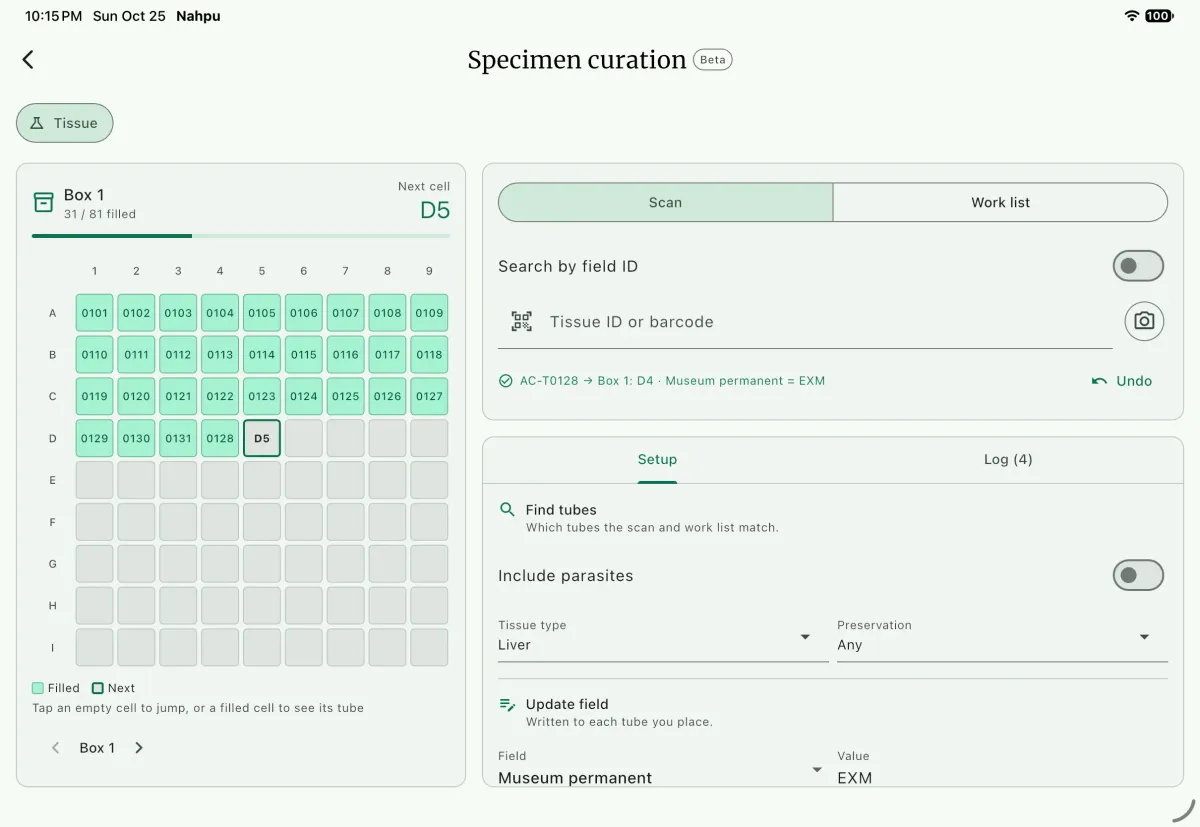
Large screen
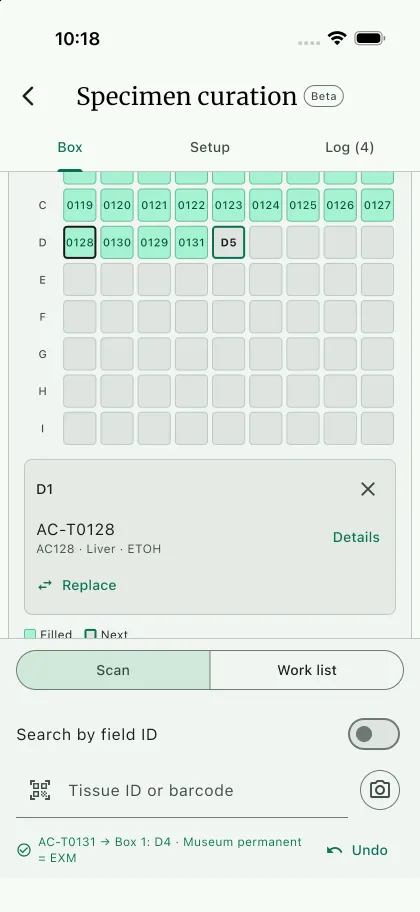
Small screen
Screen layout
Section titled “Screen layout”The screen has four areas:
- Box: the grid of the box being filled. Filled cells show the last characters of the tube's ID. Parasites start with
P. The highlighted cell is the next one to fill A. - Scan: the field for scanning or typing codes E, or the work list C.
- Setup G: which tubes to find, the field to write, and the box settings.
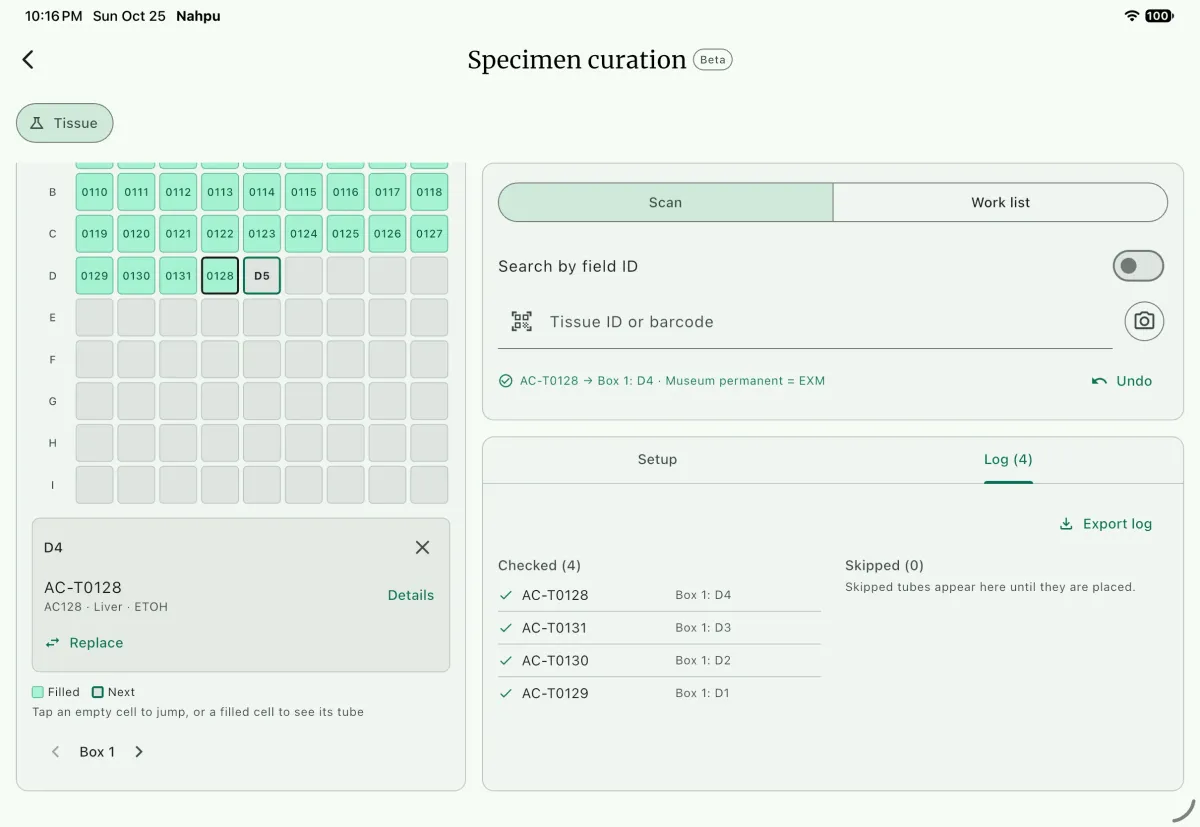
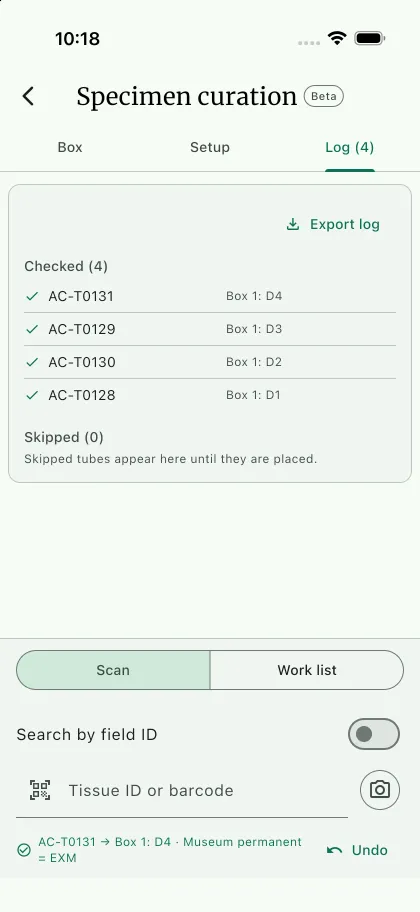
- Log J: the tubes checked and skipped in this session.
The mode selector above the box picks what you curate.
On a phone, Box, Setup, and Log are tabs, and the scan field stays at the bottom of the screen. On a tablet or desktop, the box sits on the left, and the scan field sits on the right above the Setup and Log tabs. On a wide desktop window, the log gets its own column.
Set up a check
Section titled “Set up a check”Open Setup before the first scan. NAHPU keeps these settings on the device, so the next session starts where you left off.
Find tubes
Section titled “Find tubes”These filters decide which tubes a scan and the work list match.
Include parasites: also finds parasites, by parasite ID or by the field ID of their host.Tissue type: the part types to match, such as Liver. Leave it atAnyto match every type. Parasites have no part type, so this filter never excludes them.Preservation: the treatments to match, such as ETOH.Parasite category: shown withInclude parasiteson. Matches categories such as Ectoparasite.
Update field
Section titled “Update field”Field:Museum permanentorMuseum loan.Value: the code written to each tube, usually the museum's code. Scanning is blocked until you enter a value.
Box size: 81 (9×9) or 100 (10×10) cells.Fill order:Rows, left to right,Columns, top to bottom, orSerpentine rows. In serpentine order, each row runs in the opposite direction of the row before it.Box labelandBox number: name the box in the storage location, such asBox 1. Use the label for a freezer or rack prefix, such asF2 Box.
When a box is full, the next tube goes into the first cell of the next box. Select Next box or Previous box under the grid to change boxes yourself. NAHPU reads the storage location of every tube in the project, so cells filled earlier, by this tool or typed in the part form, show as filled.
Labels and overwrite
Section titled “Labels and overwrite”Customize cell labels: changes how locations are written. Choose aNumberingofA1, A2, A3…,1, 2, 3…, or1-1, 1-2, 1-3…, aBox separator, aRow–column separator, andPad numbers with zeros. An example under the fields shows the result, such asBox 1 / A01. Turn it off to go back to the standardBox 1: A1. NAHPU keeps your custom format for next time.Overwrite existing values: lets a scan replace a stored location or a different museum code. With it off, these tubes are reported as conflicts and left as they are.
Scan tubes
Section titled “Scan tubes”Use Scan when tubes come to you in no set order.
- Select
ScanB above the scan field. - Scan a tube's barcode with a barcode scanner, or type the code and press Enter. On a phone or tablet,
Scan with camerareads codes with the device camera. - Check the message under the field. A checked tube shows its new location and value, such as
AC-T0128 → Box 1: D1 · Museum permanent = EXM. - Put the tube in the cell the message names, then scan the next tube.
By default, a code matches a part's tissue ID or barcode, or a parasite ID when parasites are included. A barcode match wins over a tissue ID match. Suggestions appear while you type. Pressing Enter always uses the typed text, so a scanner's code is never swapped for a suggestion.
Turn on Search by field ID D when tubes are labeled with the specimen's field ID instead. A field ID usually matches several tubes, such as a liver and a muscle. Add the part type or treatment after the ID to choose one, such as AC128 liver etoh. A number alone, such as 128, matches every specimen with that number. When a code still matches more than one tube, NAHPU asks which one you are holding. Closing that list without a choice logs the code as skipped.
The message under the field reports each result:
| Result | Meaning |
|---|---|
| Checked | The tube was written to the cell and the box moved on. |
| Not found | No tube matches the code and filters. No cell was used. |
| Already checked | The tube was checked earlier in this session. |
| Conflict | The tube already has a location or another museum code. Turn on Overwrite existing values to replace them. |
| Skipped | A choice between matching tubes was dismissed. |
Undo F reverts the most recent check. The tube gets back its previous value and location, and its cell is free again. Select Undo again to step further back.
Work through a list
Section titled “Work through a list”Use Work list when you fill a box in field ID order, such as all liver tubes from a trip.
- Select
Work listC above the scan field. - NAHPU lists the tubes that have no storage location and match the
Find tubesfilters, in field ID order. The current tube and the cell it will go to are shown first. - Select
Placeto write the tube to the next cell, orSkipto move past it. Skipped tubes stay on the list and show underSkippedin the log. - Use
Search work listto jump to a tube by ID, barcode, type, or treatment.
Work with the box
Section titled “Work with the box”- Change the next cell: tap an empty cell. The next tube goes there, and filling continues in fill order from that cell.
- See a filled cell: tap a filled cell to see its tubes H.
Detailsshows the tube's IDs, count, and storage location, andOpen recordopens its specimen form. A cell shared by several tubes, usually from locations typed by hand, shows how many tubes it holds. - Replace a cell: in a filled cell, select
ReplaceI and confirm. The next tube you scan or place goes into that cell, and the tubes that were there lose their location and go back to the work list. Undo puts them back.
Session log and export
Section titled “Session log and export”The log lists the tubes checked in this session, newest first, under Checked, and the tubes passed over under Skipped. A skipped tube leaves the list once it is placed.
Select Export log K to save the session as CSV, TSV, or Excel. Each row has the curation columns first: Status, Order, Field ID, Tube ID, Kind, Type, Treatment, Updated field, Value, Location, Box, Cell, Previous value, Previous location, and Replaced.
Under Columns, select Add columns to add part, specimen, and linked record fields after them, such as the catalog number or species. Added column headers names those columns by Field names or by NAHPU keys, such as specimenPart::remark. NAHPU keeps the columns you add for the next export.
Keep the exported log with the box inventory. It records what each scan changed, including the previous values that were replaced.