
Creating a new Site
Section titled “Creating a new Site”A site is a reusable place record. Collecting events belong to a site, and specimen capture records reach the site through their collecting event. Create one site for each distinct camp, trap line, locality, or other place used by your project.
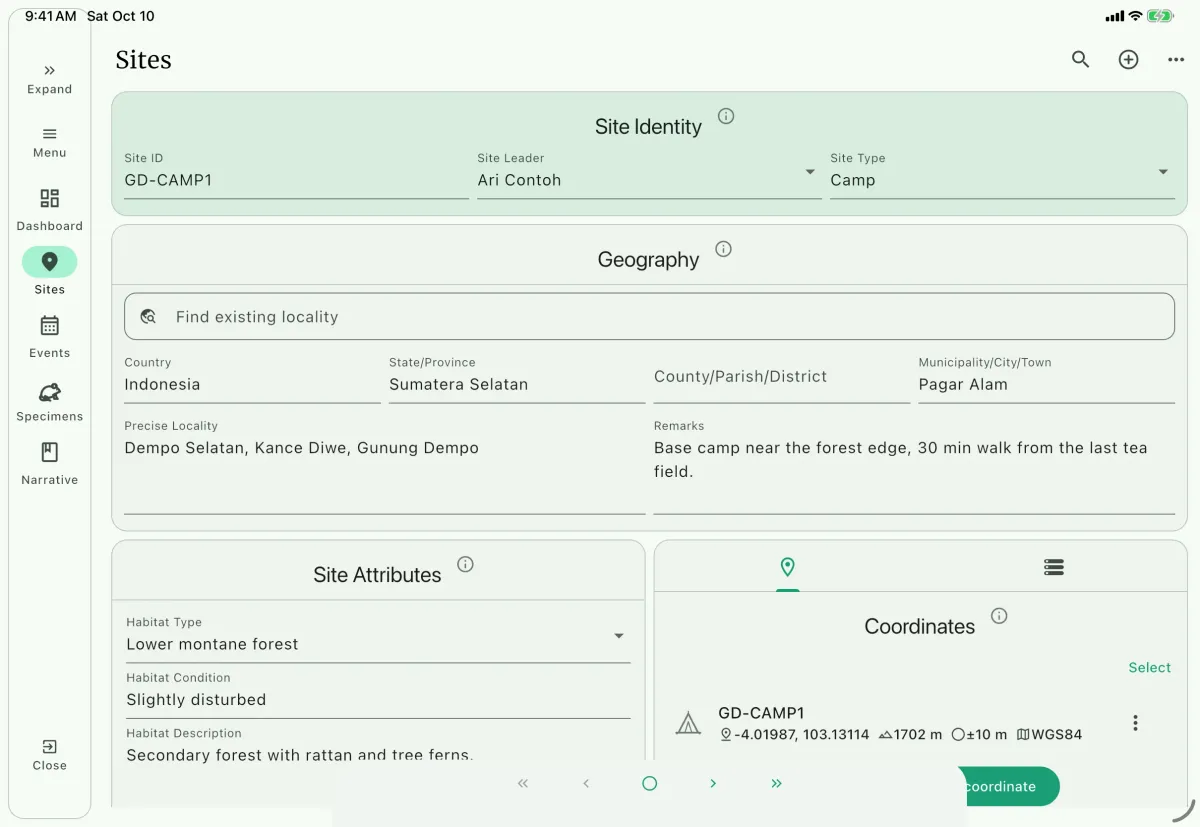
Navigate to the site page using the bottom navigation bar A.
Use the
+button B at the top right corner to create a new site.You can also use the three-dot menu icon and tap
Create site.Create a site ID C.
We recommend creating a site ID convention for your team. An example of site ID convention for mammalogy fieldwork:
- City, town, or village is ID-ed as it is. For example, the city of Bogor will be
BOGOR. - The camp site uses
{2-letter locality abbreviation}-CAMP{camp number}format. For example, camp 1 in Mt. Gede-Pangrango isGP-CAMP1. - The trap line uses
{2-letter locality abbreviation}{trapline leader initial}-L{line number}format. For example, line 1 in Mt. Gede-Pangrango led by Heru Handika isGPHH-L1. - The pitfall line uses
{2-letter locality abbreviation}{pitfall line leader initial}-P{line number}format. For example, line 1 in Mt. Gede-Pangrango led by Heru Handika isGPHH-P1.
- City, town, or village is ID-ed as it is. For example, the city of Bogor will be
Add the Site leader C
If this is a field camp, you can put the team leader name. If it is a trap line, you can designate the person in charge of that trap line as the site leader.
Add the site type C
The site type categorizes the site by its characteristics or use. Choose a value from the project's configured site-type list.
Fill in the geography details D
Start with
Find existing locality. It matches what you type against every locality already saved in the project, and selecting a suggestion fills the whole geography hierarchy at once. Each field also suggests values already recorded for that field, so a country or state you have typed before comes back as an option.Localities are stored once and shared between sites, so reusing a saved locality avoids creating a near-duplicate place record. Which geography fields appear is configurable in Settings.
We recommend following your museum convention for writing the precise locality and remarks.
Fill in the habitat information E
Type: The type of habitats: plantation, lowland rainforest, upper montane forest, etc.
Condition: The condition of the habitat: disturbed, undisturbed, minimal disturbance, etc.
Description: A brief description of the habitat. For example:
Dominated by oak trees. The ground was mostly covered by ferns, gingers, and oak seedlings.
Site information
Section titled “Site information”The site form records the place and the people responsible for it:
Site ID: a project-unique identifier used by events and exchanged records.Site leader: the person responsible for the camp, trap line, or other site.Site type: the configured category for the site.- Geography:
Country,Island group,State/Province,County/Parish/District, andMunicipality/City/Town, shared between sites that record the same place. Precise LocalityandRemarks: the specific named place below municipality level, and notes about how the site is used or operated.- Habitat type, condition, and description: the environment observed at the site.
Managing sites
Section titled “Managing sites”Open the three-dot menu on the site page for these actions:
Create site: create a new site record.Duplicate site: copy the site details into a new record with a blank ID and blank coordinates.Copy from project ...: copy selected site information from a site in another project into the current empty site.Show QR: display the site record for another mobile device to scan.Export site: save the site record as JSON or compresed in a ZIP/TAR.GZ file for records with media attachments. The exported file can be imported into another device or shared with other team members.Scan QR: create or replace a site from a site QR code.Import site: create or replace a site from an exported JSON record.Delete record: delete the current site. A site cannot be deleted while an event still references it.Delete all records: delete all sites in the current project. Events that reference those sites must be removed first.
When importing a site, choose whether the imported record creates a new site or updates an existing site. Review linked personnel and coordinates after an import.
Copy site data from another project
Section titled “Copy site data from another project”Use Copy from project ... when a site in another project has information that you want to reuse in the current project. This action fills the current site; it does not create a new site or change the source project.
The current site must be empty before you begin. A site with information, coordinates, media, or linked data cannot receive copied data. At least two projects must exist, because the source must be a different project.
Open the site that will receive the copied information. Make sure it is an empty site record.
Open the three-dot menu and select
Copy from project ....Select the source project by name, then select one of its sites.
Select the data to copy. The available choices include:
- Site ID
- Site leader
- Site type
- Geography fields, including country, island group, state/province, county/parish/district, municipality/city/town, and precise locality
- Remarks
- Habitat type, condition, and description
- Coordinates
Fields without data in the source site are unavailable. Selecting
Coordinatescopies all coordinates belonging to the selected source site.Select
Copyto fill the current site.
The source site remains unchanged. This action copies site fields and coordinates only; it does not copy site media, associated-data links, fossil-site records, collecting events, or other records linked to the source site.
Adding coordinates
Section titled “Adding coordinates”Each site can have multiple coordinate records for trapline ends, separate collection points, or other points that belong to the same site. Add a coordinate manually, use the device GPS, or import points from a GIS/GPS file.
Use device GPS while adding a coordinate
Section titled “Use device GPS while adding a coordinate”On the site page, open the coordinate panel and tap/click
Add coordinateF.On the
Add coordinatespage, use theDevice GPScard and tap/click its location button.NAHPU fills the decimal latitude, decimal longitude, elevation, and GPS uncertainty when the operating system provides them. Review the values, complete the remaining fields, and save the coordinate.
Enter the GPS unit name separately, using the exact model of your device, such as
iPad Mini 4.
Manually adding coordinate
Section titled “Manually adding coordinate”On the site page at the coordinate panel, tap/click on the
Add coordinatebutton.Enter the coordinate name.
Keep the name short and informative. You can use the
Notesfield to add additional information about the coordinate.Select a coordinate format and enter its values.
NAHPU accepts decimal degrees (DD), degrees and decimal minutes (DDM), degrees-minutes-seconds (DMS), and a single UTM value in the form
zone hemisphere easting northing. UTM input uses WGS84. Latitude and longitude directions must match their axes, and converted decimal values must be within valid latitude and longitude ranges.For DDM and DMS, enter degrees, minutes, and seconds in their separate numeric fields, then choose N/S for latitude and E/W for longitude. NAHPU adds the coordinate symbols and concatenates the parts for the Darwin Core verbatim latitude and longitude values.
NAHPU saves decimal latitude and longitude for calculations and also keeps the concatenated value and coordinate system for Darwin Core verbatim fields. If coordinate values are already entered, changing formats asks for confirmation before clearing them. Selecting DD clears older verbatim coordinate values after the coordinate is saved.
Add elevation in meters.
Select the datum.
The default datum is WGS84. Check your GPS settings for the exact datum of your coordinates.
Enter uncertainty values in meters.
Watch the uncertainty of your GPS. Some old GPS may not record the number. It is a good practice to take note of the uncertainty if you do not bring the NAHPU device with you to the coordinate location.
Enter the name of the GPS you use.
Example device name:
Garmin 62scAdd notes.
Add additional information if any.
Import coordinates from a file
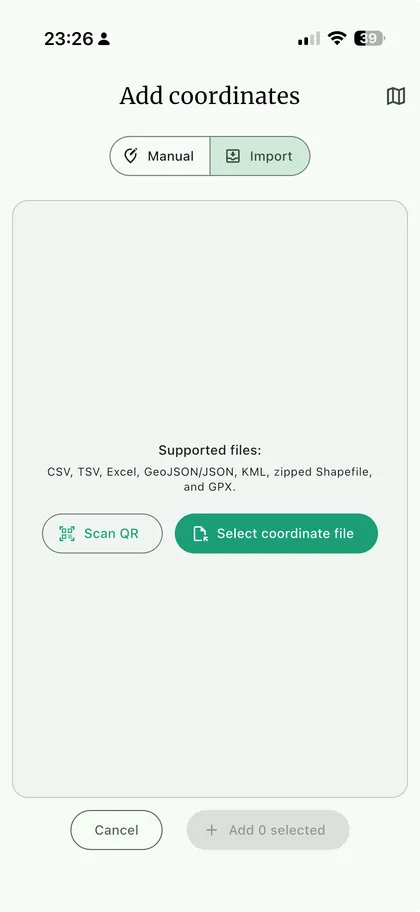
Section titled “Import coordinates from a file ”Use Add coordinate > Import H > Select coordinate file I for CSV, TSV, Excel, GeoJSON/JSON, KML, zipped Shapefile, or GPX.
For tabular files, Match columns requires Latitude and Longitude in decimal degrees. Optional fields are Name / ID, Elevation (m), GPS unit, and Notes. Review the inferred mapping, leave unwanted fields as Not included, and select Review coordinates. Use Edit column mapping to correct an unexpected preview.
Review warnings and the mapped positions. Use individual checkboxes, Select all, or Clear all, then Add N selected J to add the chosen points to the current site. Check the saved points before using them for specimens.
Imported positions use WGS84. Confirm the source datum before import; this workflow does not convert another datum to WGS84. Elevation is in meters. Coordinate uncertainty is not supplied by this import; review and add it from the source when known. Tabular files can supply the GPS unit, while GIS imports do not supply it.
Only point geometries are imported. Unsupported geometries and invalid rows are skipped with warnings; GPX routes and tracks are ignored. No valid points produces an error instead of new coordinates.
Manage and export coordinates
Section titled “Manage and export coordinates”The Manage button in a site's coordinate panel opens all project coordinates. You can filter the list by site, select individual points or all visible points, focus a point on the map, and open the map in full screen.
Open a site's coordinate panel and tap/click
ManageG.Filter by site if needed, then select the coordinates to export.
Tap/click
Export coordinates (N).Choose
GeoJSON (.geojson),KML (.kml), orShapefile bundle (.zip). Enter a file name, choose a destination directory, and selectExport.After the file is created, use
Shareon devices that support sharing.
Every exported coordinate must have a valid decimal latitude and longitude. GIS exports include the coordinate name, notes, WGS84 decimal latitude and longitude, and elevation when available. Coordinate export is separate from Export records, project bundles, and database backups; use those options when you need tabular records or a restorable NAHPU project copy.