
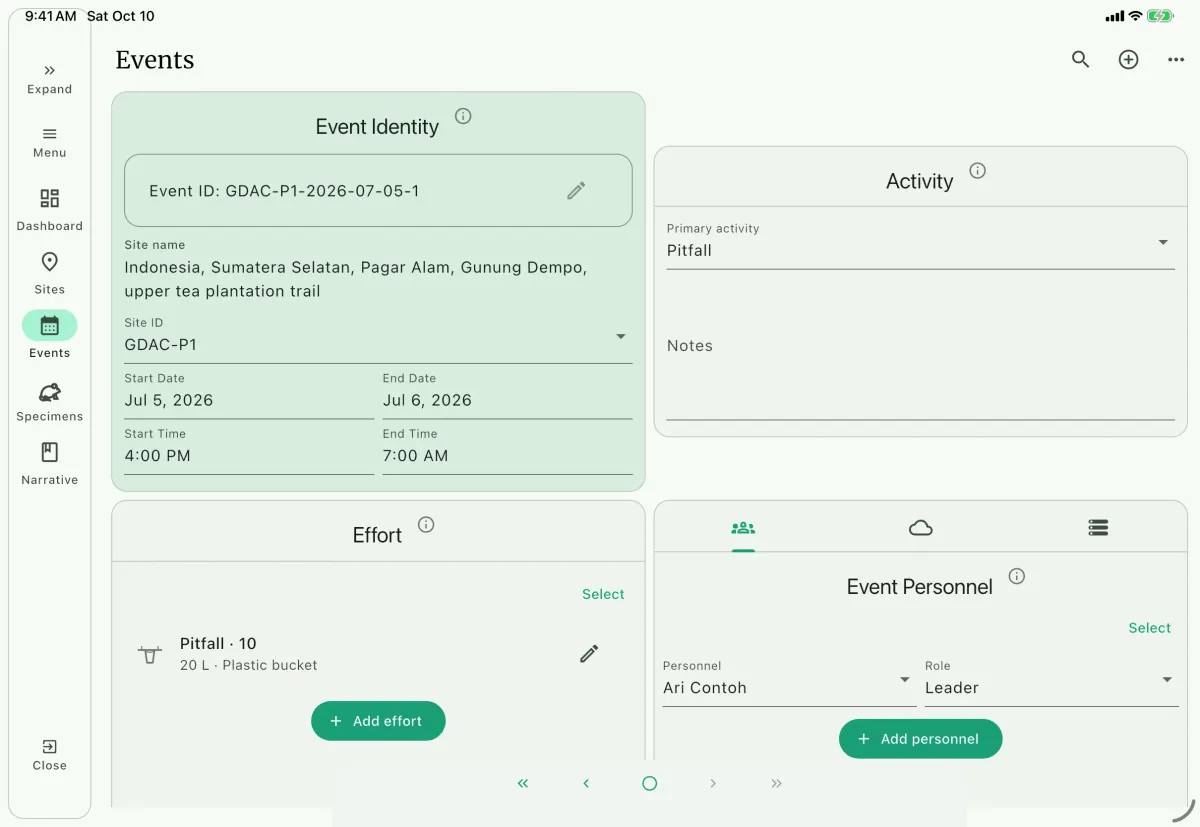
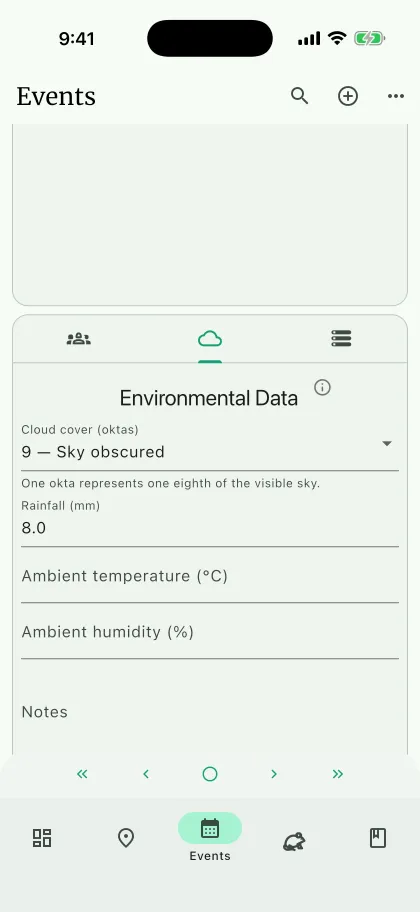
Collecting events help you keep track of activity, effort, personnel, environmental, and astronomy data for a period of work at a site. Specimen records link to a collecting event, not directly to a site, so the event is the bridge between a specimen and the site, coordinate, method, and collector context.
Setting up events
Section titled “Setting up events”The NAHPU default list for Primary activities is Collecting, Recording, and Observing. Other is deliberately not included, but you can add it or any protocol-specific activity. Existing activity values remain available even when they are not in the configured list.
- Navigate to the dashboard.
- Tap/click the hamburger menu in the top left corner.
- Select
Settings. - Select
Events. - Edit primary activities, collection methods, and personnel roles to match your field scenario.
- Under
Environmental data fields, select the built-in fields that should appear in the event form. The defaults are ambient temperature, ambient humidity, cloud cover, rainfall, and notes.
Managing collecting events
Section titled “Managing collecting events”Open an event and use its three-dot menu to manage the record:
Edit: change the event fields, effort, personnel, or environmental data.Duplicate event: copy the site, times, activity, notes, efforts, and personnel. The dates move forward one day and the new event gets an empty environmental-data record.Show QR: display the event record for another mobile device to scan.Export event: save the event and its related data as JSON.Scan QR: create or replace an event from an event QR code.Import event: create or replace an event from an exported JSON record.Delete record: delete the event, its efforts, its event personnel, environmental data, and per-event custom values. A specimen record that references the event must be moved or deleted first.Delete all records: delete all collecting events and their related effort, personnel, and environmental data in the current project.
When importing an event, choose whether the incoming record creates a new event or updates an existing event. Confirm the referenced site and personnel after the import.
Default collection methods include Hand, Net, and Pitfall. Default personnel roles include Leader and Helper. You can add more specific values, such as mist net, harp trap, visual encounter survey, driver, recorder, or observer, depending on your protocol.
Creating a new event
Section titled “Creating a new event”Navigate to the event page using the bottom navigation bar.
Use the
+button A at the top right corner to create a new event.You can also use the three dot menu icon and tap on
Create event.Select the
Site IDC.Add the
Start DateandEnd Date.The
Event IDB is generated from{Site ID}-{Start Date}.Edit the
Event ID(optional).If you have multiple events with the same
Site IDandStart Date, add an ID suffix. This is useful when you separate day and night work, run multiple activities at the same site, or need to distinguish repeated events on the same date.Add
Start TimeandEnd Time.Add
Primary activityE.The defaults are
Collecting,Recording, andObserving.Otheris not a default; add it inSettings>Eventsif your protocol needs it. For many specimen workflows this will beCollecting, but create separate events when different activities need their own effort, personnel, or environmental context.
Event details
Section titled “Event details”The Event Details card stores the core event identity and timing:
Event ID: generated from site ID, start date, and optional suffix.Site ID: site where the event occurred.Start DateandEnd Date: event date range.Start TimeandEnd Time: event time range.
For mammal projects, the default start date is set to the previous day and the default time picker starts at 07:00, which supports overnight trap checks. For other catalog formats, date and time pickers default to the current date/time.
Activity
Section titled “Activity”The Activity card stores the broad purpose of the event.
Primary activity: selected from the editable controlled vocabulary in event settings. Stored legacy values are also offered so existing data is not lost.Notes: free-text notes about the activity, secondary activities, protocol details, or whyOtherwas selected.
Adding effort
Section titled “Adding effort”Use the
+ Add effortF button to create a new effort.Select a method.
Add
Brand and Modelwhen the method uses specific equipment.Add
Count.This is the number of tools, traps, nets, recorders, or other units used.
Add
Sizewhen applicable.Add
Notesfor effort-specific details.
Effort records are stored separately from the event so one event can include multiple methods. Each effort contains:
Method: user-defined collection method.Brand and Model: equipment brand/model when relevant.Count: number of tools or units.Size: size of the tool or setup.Notes: any method-specific notes.
Specimen capture records can later select one of these event efforts as the specimen's Method.
Adding collecting personnel
Section titled “Adding collecting personnel”Use the Event Personnel tab to record everyone involved in the event.
- Open the personnel tab in the lower right event panel.
- Use
+ Add personnelG. - Select a
Personnelentry from the project personnel list. - Select a
Role.
Personnel roles are user-defined in event settings. Add anyone who contributed to the event, including collectors, leaders, helpers, drivers, observers, recorders, or people who assisted with logistics. Specimen capture records can later select an event personnel entry as the specimen's Collector.
Environmental data and astronomy
Section titled “Environmental data and astronomy ”Enter astronomy values from observations or a documented source; NAHPU does not calculate sunrise, sunset, or moon phase. Use the project’s local-time convention and leave unmeasured values empty. Fields update as you edit; check validation messages before leaving the form.
NAHPU creates one environmental-data record H for each collecting event. In Settings > Events, select which built-in fields appear in the form. Hiding a field changes only the form: previously stored values remain in the database and in exports.
Available built-in fields include:
Day LowestandDay Highest: daytime temperature range in degrees Celsius.Night LowestandNight Highest: nighttime temperature range in degrees Celsius.Average: average humidity percentage.Dew Point: dew point temperature.Cloud coverI: a code from0(clear) through8(fully overcast), or9when the sky is obscured. One okta represents one eighth of the visible sky.Rainfall,Ambient temperature, andAmbient humidity: conditions at the event.Water temperature,pH,Dissolved oxygen, andFlow velocity: aquatic measurements.SunriseandSunset: local sunrise and sunset times.Moon Phase: one ofNew Moon,Waxing Crescent,First Quarter,Waxing Gibbous,Full Moon,Waning Gibbous,Last Quarter, orWaning Crescent.Notes: additional weather, habitat, or astronomy notes.
Use Add custom field or Manage custom fields in this section for installation-wide or project-specific environmental fields. Their values belong to the individual event, are not filtered by specimen catalog format, and are included in event, specimen, document, Darwin Core, record-exchange, and project-transfer exports.
Environmental data is not copied when duplicating an event. The duplicated event gets a blank record so you can enter the correct conditions for that date.
How specimen records use events
Section titled “How specimen records use events”When you create or edit a specimen, the Capture Records card pulls data from collecting events:
Site IDfilters the available event IDs.Event IDlinks the specimen to the event.Methodcomes from the event's effort records.Collectorcomes from the event personnel list.Coordinate IDcomes from coordinates associated with the event site.
Changing a specimen's event clears event-dependent fields such as method, collector, and coordinate, while preserving the specimen's capture date and time.