
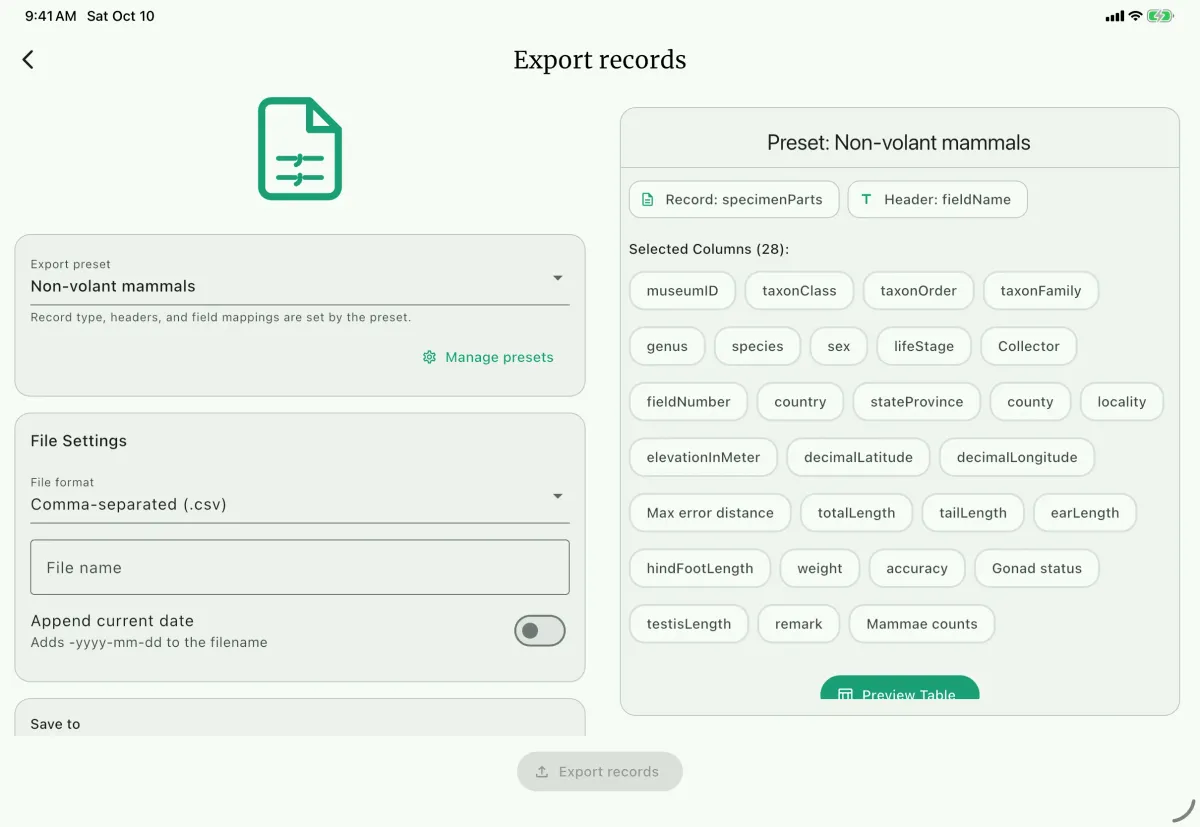
Large screen
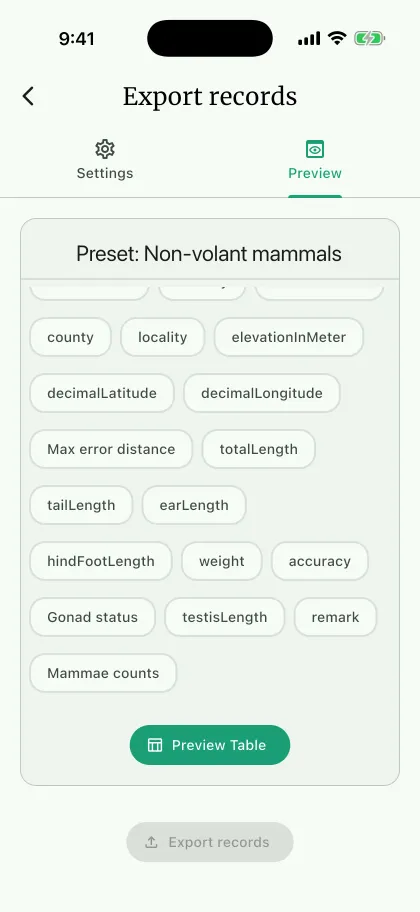
Small screen
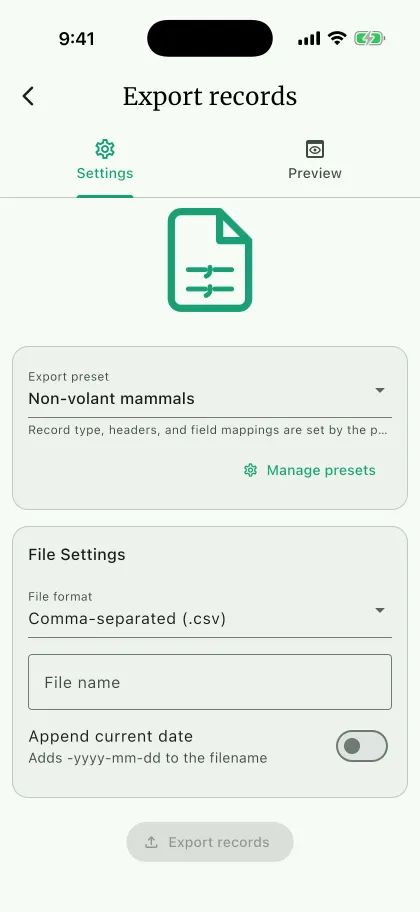
Use Export records to write the active project's data to CSV, TSV, Excel, or JSON using a saved export preset.
Quick way to export records
Section titled “Quick way to export records”- Open the project menu and select
Export records. - Choose an
Export presetA. If none is available, openManage Presetsto create one; useManage presetsB to review an existing preset. - Check its record type, taxon scope, headers, and field mappings. Use
Preview TableD to inspect actual rows. On a phone, switch toPreviewF to find the preview controls. - Choose the file format C and filename, and set
Append dateG if needed. Darwin Core headers are not available with JSON output. - Select the destination and choose
Export recordsE. - Open the completed file and verify rows, headers, units, and repeated values. Use the result's
Shareaction when transferring the file, orExport anotherfor another output.
Deep dive
Section titled “Deep dive”The preset defines the export's record type, filters, and columns. These choices are edited in the preset, not on the export screen. Supported record types include narrative, sites, events, specimen records, and specimen parts. Specimen taxon scope can narrow the records included.
In Settings > Tabular Data, preset settings persist as you change them. Renaming is explicit: enter the name and select Update. The optional Description, up to 80 characters, is saved the same way and shown under the preset name in the list. Use Duplicate to copy the preset under a new name. Use Edit Fields to review source fields, output headers, and repeated-value handling. Preview a record containing multiple entries so you can assess whether the resulting columns or joined values suit the receiving software. Use Add custom field to write fields and literal text, or text alone, into one column; see Export expressions.
Generated header format offers table::fieldName, fieldName, Darwin Core (dwc:/dcterms:), and NAHPU namespace (nahpu:table.field). Select the convention required by the recipient and check the resulting headers. Darwin Core mapping retains unmatched fields with NAHPU headers; it does not make every observation a standard Darwin Core term.
Additional observation fields are distinct from selecting a custom set of export columns. Environmental custom fields use stable source keys such as customEnvironment::<definition UUID>. Event and specimen exports can include stored environmental data even when those fields are hidden in the form. Visibility is not an export filter.
Darwin Core mappings use the specimen's determiner for identification attribution, preserve verbatim coordinates, and add positive specimen coordinate extent to positive coordinate uncertainty. Review that combined value against the project's georeferencing method. Check measurement units rather than assuming values have been converted.
CSV and TSV support tabular exchange; Excel supports spreadsheet review; JSON supports downstream software that accepts its structure. Open the output in the intended tool and inspect IDs with leading zeros and dates for unwanted interpretation.
Transfers and recovery
Section titled “Transfers and recovery”These record exports cannot be imported back as NAHPU projects. Use project transfers or a native NAHPU Data Package for supported re-import, and database backup for installation-wide recovery. Use home-screen Import project for another installation and existing-project Merge project to combine contributions.
See creating a preset for a repeatable team configuration.